Quick Ways to Locate a Laptop Model Number
Your laptop model number helps confirm which replacement battery, charger or accessory is compatible with your device. For the most accurate result, use the laptop model together with the battery part number printed on the original battery.
Method 1: Check the Product Label
The product label is usually the easiest and most reliable place to find the laptop model number. The label may show terms such as Model, Product, Product Name, Series, Type, Service Tag or Serial Number. For battery compatibility, the model number is useful, but the battery part number is often even more precise.
Steps
- Shut down the laptop and disconnect the AC adapter.
- Turn the laptop over and check the bottom cover for a manufacturer label.
- If the label is not on the bottom, check around the keyboard, palm rest, screen bezel or near the power button.
- For older removable-battery laptops, remove the battery and check inside the battery compartment.
- Write down the full model number exactly as shown, including letters, numbers, spaces and dashes.
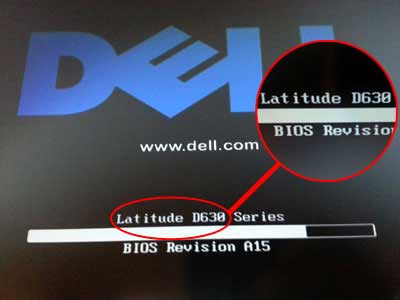
Please note: on some laptops, the label is inside the main battery compartment, and you must remove the battery to read the label. The manufacturer may also print the model on or near the keyboard, such as Acer Aspire E5-572G-593Y, Dell Latitude E6410 or Dell Latitude D630.
Common label locations
Bottom coverInside battery compartmentNear keyboardNear power buttonBoot screen
Examples
Figure 1: Label on or near the keyboard
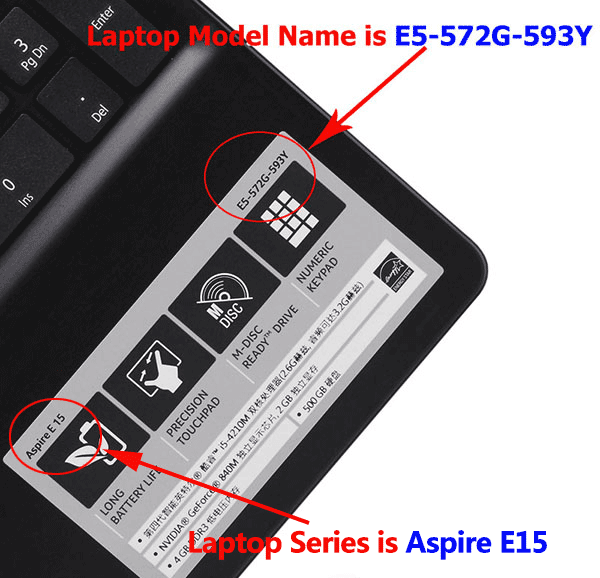
Figure 2: Label on the back of the notebook
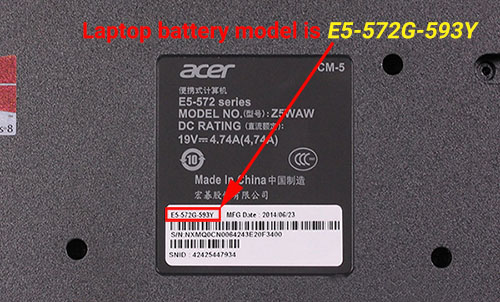
Figure 3: Label inside the battery compartment
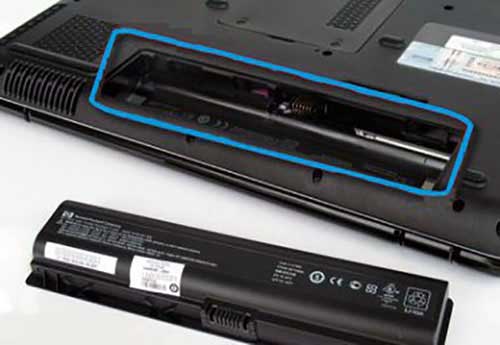
Figure 4: Model printed near the power button

Figure 5: Model shown on the power-on screen
Method 2: Use Windows System Information
If the physical label is worn, missing or difficult to read, Windows System Information can show the laptop model while the computer is still working. This method is useful for many Windows laptops, including Dell, HP, Lenovo, Acer, Asus, Toshiba, Samsung and other brands.
Steps
- Start the laptop and sign in to Windows.
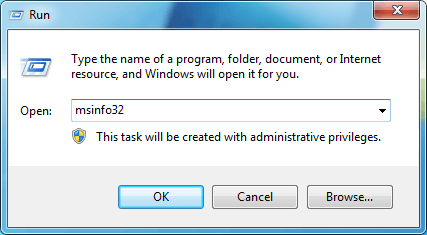
- Press Windows + R to open the Run box.
- Type msinfo32 and click OK.
- In the System Information window, look for System Model and System SKU.
- Write down the model number and use it together with the battery part number when searching for a replacement.
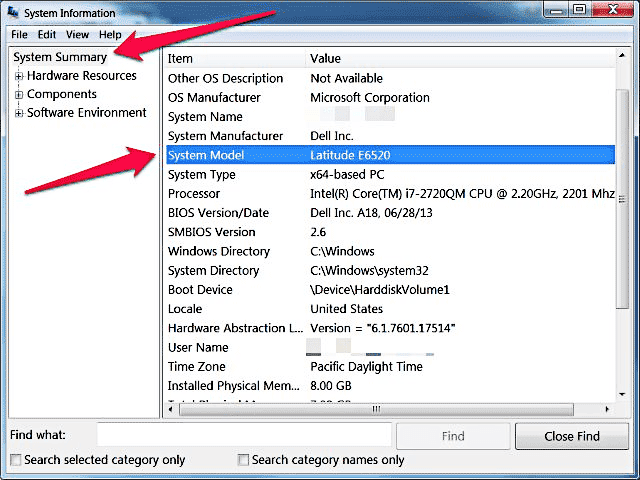
Tip: Windows may show a broad series name instead of the exact battery configuration. If you are buying a replacement battery, also check the original battery label whenever possible.
Method 3: Check BIOS or Boot Screen
If Windows cannot start or the product label is unreadable, BIOS can often show the laptop model, product name, serial number and service information. BIOS access keys vary by brand, but common keys include F2, Esc, F10, F12 and Del.
Steps
- Save your work, close applications and restart the laptop.
- As soon as the laptop begins to start, press the BIOS key shown on screen or commonly used by your brand.
- If the laptop starts Windows normally, restart and try again earlier in the boot process.
- Inside BIOS, look for Product Name, System Model, Machine Type, Service Tag or Serial Number.
- Write down the model information and exit BIOS without changing settings.
Important: Do not change BIOS settings unless you know exactly what they do. You only need to read the model information.
Before Ordering a Replacement Battery
A laptop model number is helpful, but battery compatibility should be checked with more than one detail. The safest way to order is to compare both the laptop model and the original battery part number.
Compatibility checklist
- Confirm the laptop model number or product name.
- Find the battery part number printed on the original battery label.
- Compare battery voltage, capacity, connector position and physical shape.
- Check the compatible model list on the product page.
- If anything is unclear, send us photos of the laptop label and battery label before purchasing.
FAQ
Is the laptop model number the same as the battery part number?
No. The laptop model identifies the computer, while the battery part number identifies the battery pack. Use both for the best match.
What if I cannot find the model number?
Check the bottom label, battery compartment, Windows System Information and BIOS. If you still cannot find it, contact us with clear photos of the laptop and battery labels.
Can one laptop model use more than one battery?
Yes. Some laptop series support different battery capacities, shapes or voltages, so always compare the original battery label before ordering.